The Essential RAW File Backup & Storage System
RAW files are the lifeblood of professional photography. They carry every detail your camera captures — dynamic range, shadow recovery, highlight protection — none of which exist in a compressed JPEG. Losing them is not just an inconvenience; it can mean losing client work, months of shoots, or years of memories. Yet most photographers treat storage as an afterthought.
This guide covers everything you need to build a bulletproof RAW file backup and storage system, from the foundational 3-2-1 rule to hardware recommendations, cloud services, workflow automation, and storage considerations by photography genre.
The 3-2-1 Backup Rule: Your Foundation
Every photographer’s storage strategy should be built on the 3-2-1 rule. It is simple, battle-tested, and protects you against almost every failure scenario.
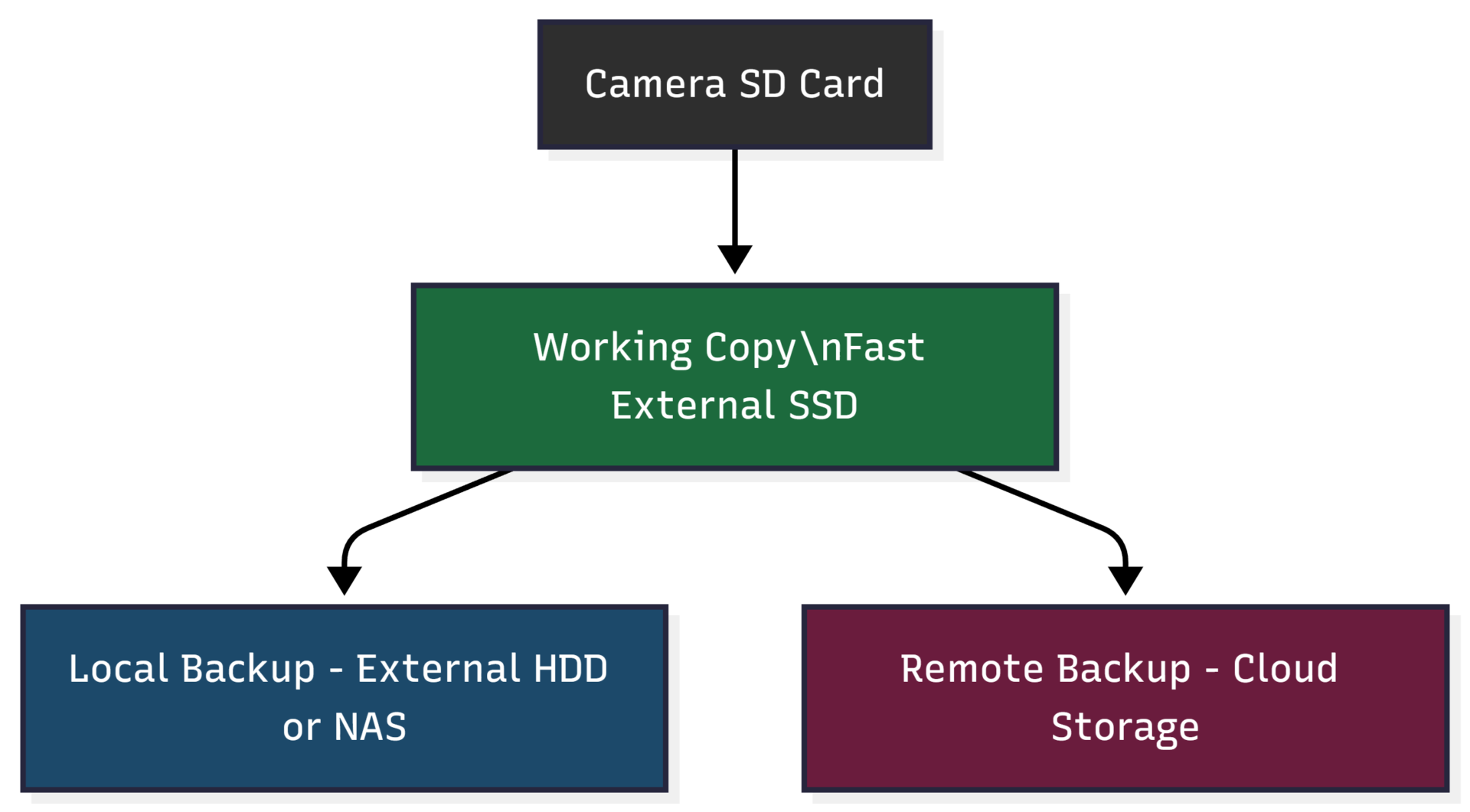
3 total copies of every RAW file. 2 on different local media types. 1 stored offsite in the cloud or at another physical location.
This structure means you have multiple points of failure before data is actually lost. If your working SSD dies mid-project, your local backup has you covered. If your office floods or burns down, your cloud backup remains untouched. Most photographers who lose images permanently had only one copy — often on their computer’s internal drive.
Storage Types Explained
Before building your system, understand what each storage type does and where it fits.
| Storage Type | Speed | Capacity | Cost per TB | Best Use |
|---|---|---|---|---|
| Internal SSD | Very Fast | 1–4 TB | $80–$120 | Active editing, OS |
| External SSD | Fast | 500 GB–4 TB | $100–$150 | Working/hot storage |
| External HDD | Moderate | 2–20 TB | $20–$40 | Local archive backup |
| NAS (RAID) | Fast (local) | 10–100+ TB | $15–$30 | Studio/team archive |
| Cloud Storage | Varies | Unlimited | $5–$12/mo | Offsite backup |
Internal Storage
Your computer’s internal drive is fast and immediately accessible, but it fills up quickly with RAW files — especially shooting high-resolution cameras. Use it only for your current project folder, never as a primary archive. Internal storage should be part of the system, not the whole system.
External SSD (Working Drive)
This is your “hot” drive — the one you actively edit from. External SSDs like the Samsung T7 or LaCie Rugged Mini SSD offer read speeds up to 1,050 MB/s, making them ideal for working with large RAW files in Lightroom or Capture One without lag. They are compact, durable, and bus-powered, meaning no extra cables needed in the field.
One important note: SSDs can lose data when left unpowered for extended periods (months to years). They excel as working drives but are not ideal for long-term archiving.
External HDD (Local Backup)
Hard disk drives remain the most cost-effective solution for bulk storage. At roughly $20–$40 per terabyte, a 4–8 TB external HDD can hold tens of thousands of RAW files at a fraction of the cost of SSD storage. They are slower than SSDs but perfectly adequate for backup and archive purposes where speed is not critical.
For professional use, having two external HDDs — one as your primary local backup and one as a secondary — is worth the investment.
NAS (Network Attached Storage)
A NAS device sits on your home or studio network and allows multiple devices to access stored files simultaneously. With RAID configuration (mirrored drives), it provides redundancy: if one drive in the array fails, data remains intact on the mirror. NAS systems like Synology or QNAP are popular with studio photographers managing large ongoing archives and teams who need shared access.
Cloud Storage
Cloud backup is your insurance policy. It protects against physical disasters — fire, theft, flood — that would destroy local drives. Services differ in price, speed, and features:
| Service | Best For | Price (Approx.) |
|---|---|---|
| Backblaze B2 | Unlimited photo backup | ~$7/month |
| iDrive | Multiple device backup | ~$5–$10/month |
| Dropbox | Collaboration + backup | ~$10–$15/month |
| Google One | Integration with Google ecosystem | ~$3–$10/month |
| Imagen AI | Photography-specific backup + AI culling | Varies |
| AWS S3 | Large-scale, technical users | Pay-per-use |
For most photographers, Backblaze or iDrive offer the best value. They run in the background, automatically backing up your designated folders without manual intervention.
Building Your Workflow: Step by Step
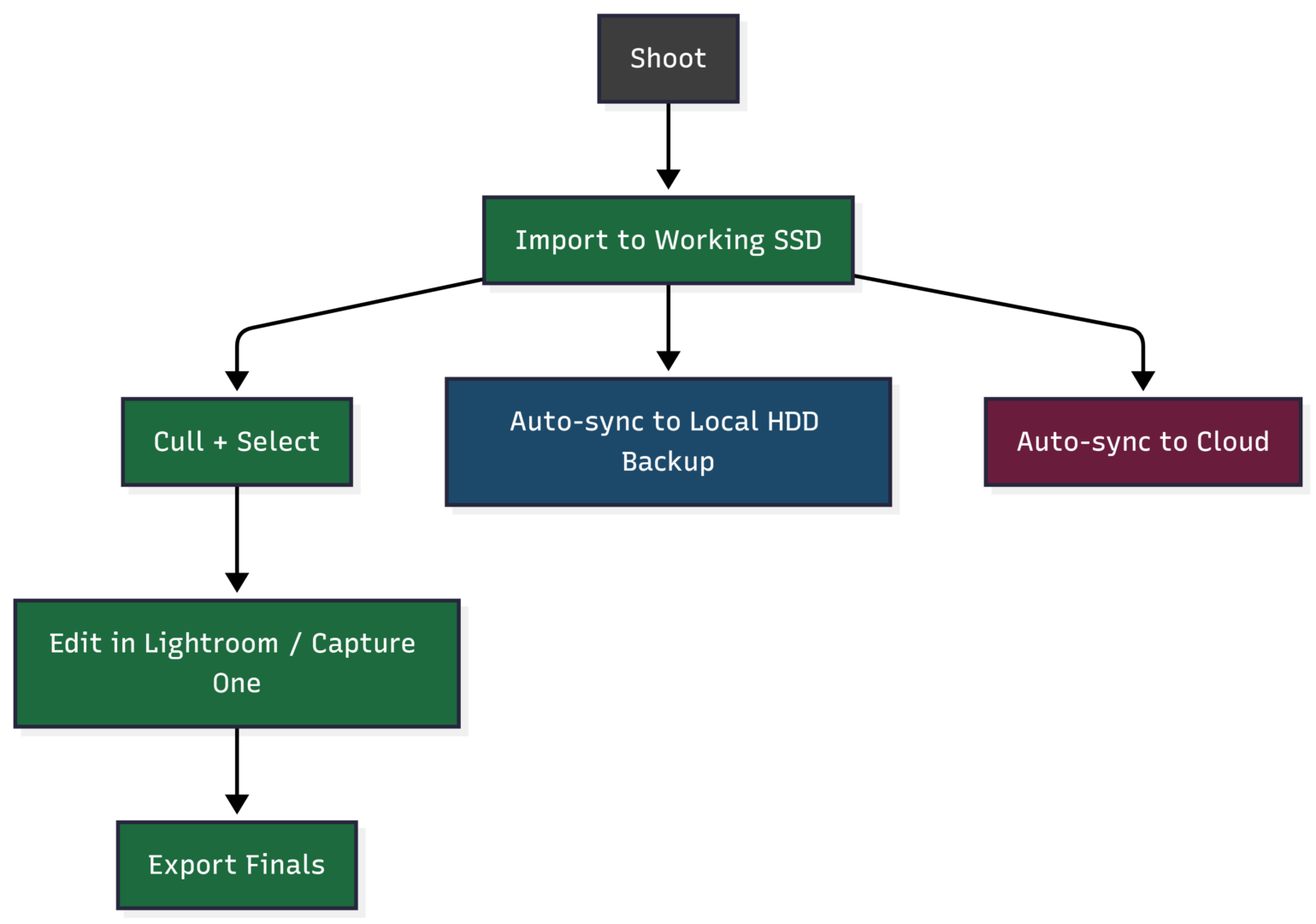
Step 1 — Offload immediately. When returning from a shoot, copy RAW files from your SD card to both your working SSD and your local HDD backup before doing anything else. Never edit directly from the SD card.
Step 2 — Establish a folder naming convention. Consistent naming makes files findable years later. A reliable structure looks like:
Photography/
├── 2024/
│   ├── 2024-10_ClientName_FoodShoot/
│   │   ├── RAW/
│   │   ├── Edited/
│   │   └── Finals/
Use a convention that makes sense to your workflow — by year, client, or project — and stick to it without exception.
Step 3 — Edit from your working SSD. Import your working SSD folder into Lightroom or Capture One. Keep your catalog and previews on your internal drive for speed, while RAW source files remain on the external SSD.
Step 4 — Automate your backups. Set your backup software to sync your working SSD folder to your local HDD and cloud service automatically. On Mac, Time Machine handles local backups. On Windows, File History or third-party tools like FreeFileSync work well. Cloud services like Backblaze and iDrive run continuously in the background.
Step 5 — Archive completed projects. Once a project is delivered and final files are exported, move the project folder off your working SSD and onto your long-term archive HDD or NAS. This keeps your working drive lean and fast.
Step 6 — Verify backups periodically. Automation is not a guarantee. Periodically open your backup drive and cloud service to confirm files are actually there and intact. A backup you have never tested is a backup you cannot trust.
Hardware Recommendations
Working Drives (External SSD)
| Drive | Capacity | Read Speed | Approx. Price |
|---|---|---|---|
| Samsung T7 Shield | 1–4 TB | 1,050 MB/s | $80–$200 |
| LaCie Rugged Mini SSD | 500 GB–2 TB | 1,050 MB/s | $100–$220 |
| SanDisk Extreme Pro | 1–4 TB | 2,000 MB/s | $110–$250 |
Backup/Archive Drives (External HDD)
| Drive | Capacity | Approx. Price |
|---|---|---|
| LaCie Rugged HDD | 2–5 TB | $80–$140 |
| Seagate Backup Plus | 4–8 TB | $80–$150 |
| WD My Passport | 2–5 TB | $70–$120 |
Desktop/Studio Storage
| Drive | Capacity | Key Feature | Approx. Price |
|---|---|---|---|
| LaCie 2big Dock | Up to 48 TB | Thunderbolt 3, dual drive RAID | $500–$800 |
| LaCie 1big Dock SSD Pro | Up to 8 TB | SSD speed, hub functionality | $700–$1,200 |
| Synology DiskStation DS923+ | Expandable | NAS, RAID, remote access | $600+ (drives extra) |
Storage Considerations by Photography Genre
Different types of photography generate different volumes of data, and your storage system should reflect that.
Food Photography — Shoots are controlled and typically lower volume, but RAW files from high-resolution cameras (45–60 MP) are large. A 4 TB working SSD paired with an 8 TB local backup HDD and cloud sync covers most professional workflows.
Portrait Photography — High-resolution files with multiple client sessions create significant ongoing storage demands. Prioritize fast SSDs for editing speed and reliable cloud backup for client file protection.
Event Photography — Events generate massive file volumes in short windows. Cameras with dual card slots allow in-camera redundancy during the shoot itself. Post-shoot, move files to a fast external SSD immediately and sync to backup before sleeping.
Wildlife and Travel Photography — Remote locations limit cloud access. Rugged, portable SSDs (LaCie Rugged, SanDisk Extreme) built to withstand drops, dust, and rain are essential. Carry redundant drives in separate bags so a single loss does not take everything.
Common Mistakes to Avoid
Storing only on your computer’s internal drive. Internal drives fail, computers get stolen, and internal storage fills up. It is never sufficient as a standalone solution.
Keeping RAW files on SD cards. SD cards are not backup devices. They are temporary transport media. Offload and verify before reformatting, but do not use cards as your archive.
Never testing your backups. Many photographers discover their backup failed only when they need to restore from it. Test quarterly.
Relying solely on cloud storage. Cloud services can have outages, account issues, and slow restoration speeds for large libraries. Cloud backup should be one layer of your system, not the whole system.
Skipping automation. Manual backups get skipped during busy periods. Automate every step you possibly can.
The Right Mindset Around RAW Storage
There is ongoing debate among photographers about whether to keep RAW files long-term. For paid client work, the answer is unambiguous: keep them. RAW files from years past can be reprocessed with new software, AI denoise tools, and updated editing techniques that did not exist when you originally shot. Photographers who archived their RAW files from early digital shoots have been able to dramatically improve those images using modern tools. That opportunity does not exist if you discarded the RAWs.
For personal or hobby photography, the decision is more subjective. Storage is inexpensive enough that keeping RAW files costs little, and the option to revisit them later has real value. When in doubt, keep them.
Summary
The essential RAW file backup system is not complicated, but it requires intentionality. Follow the 3-2-1 rule, invest in reliable hardware, automate what you can, and verify your backups regularly. Your images represent real time, real effort, and in many cases real income. A storage failure should never be the reason you lose them.
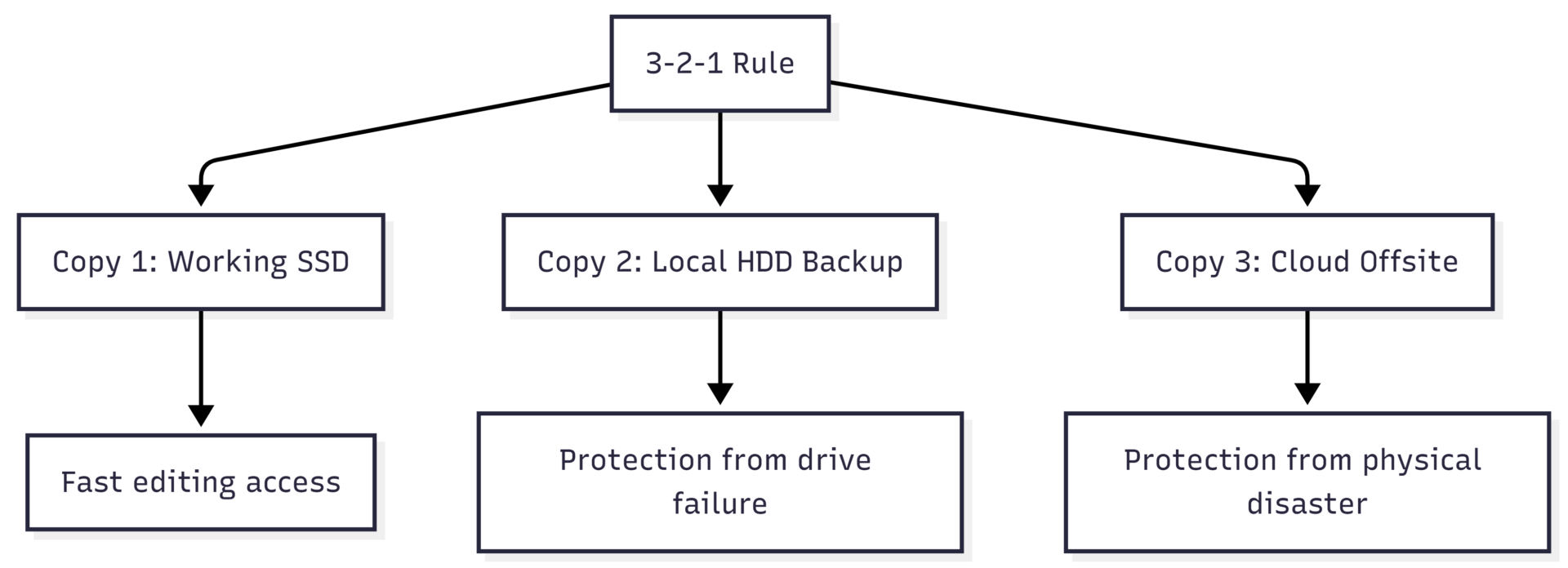
Start with a reliable external SSD for your working drive, a high-capacity HDD for your local backup, and a cloud service running automatically in the background. That combination protects your work against nearly every realistic failure scenario — and lets you focus on what actually matters: creating great images.
Please share this The Essential RAW File Backup & Storage System with your friends and do a comment below about your feedback.
We will meet you on next article.
Until you can read, What is the best focal length for food photography?