How To Switch to a Pinterest Business Account: 3 Easy Steps
Switching your personal Pinterest account to a business account is completely free and takes just minutes. It instantly unlocks powerful tools like detailed analytics, Pinterest ads, rich pins, and website claiming — all designed to help bloggers, creators, and small businesses drive more traffic, grow their audience, and turn pins into real visitors and customers.
Unlike a personal account, a business account gives you data-driven insights and promotional features that make Pinterest marketing far more effective. Your existing pins, boards, and followers transfer over seamlessly, and you can switch back to personal anytime if needed. For WordPress site owners, this upgrade pairs perfectly with plugins that enhance rich pins and one-click sharing.
Below is a complete guide: why it matters, a side-by-side comparison, the exact 3-step process, setup tips, and recommended tools with current pricing.
Personal vs. Business Pinterest Account: Key Differences
| Feature | Personal Account | Business Account |
|---|---|---|
| Pinterest Analytics | No | Yes |
| Pinterest Ads & Promoted Pins | No | Yes |
| Rich Pins (detailed product/recipe info) | No | Yes |
| Claim Your Website | No | Yes |
| Custom Profile Branding (header, monthly viewers) | Basic | Full |
| Audience Insights & Demographics | No | Yes |
| Creator Hub Tools | No | Yes |
Business accounts remain free forever. The only cost comes if you choose to run paid ads (you set your own budget).
Example Pinterest Analytics dashboard showing impressions, audience demographics, and performance trends available only to business accounts.
Why Switch: The Real Benefits for Bloggers
1. Pinterest Analytics
Business accounts provide in-depth metrics you simply cannot access otherwise. Track impressions, saves, clicks, outbound traffic, and top-performing pins. Audience insights reveal age, gender, location, interests, and devices.
For a food blogger, this means discovering that cake recipes get 3x more saves than cookies — then doubling down on similar content. Data shows which pins drive the most blog traffic, helping you refine titles, descriptions, and images for better SEO and engagement. Without analytics, you’re guessing. With them, you make strategic decisions that grow monthly viewers faster.
2. Pinterest Ads and Promoted Pins
Run targeted ads to expand reach beyond organic followers. Promote your best pins to specific audiences based on interests, keywords, or lookalike users. Start small — even $5–10 daily tests — and scale what works. Ads let you reach new pinners actively searching for your niche, whether recipes, home decor, or fashion.
3. Rich Pins
Rich pins automatically pull extra details from your website, making pins more informative and clickable. For recipes, they display ingredients, prep time, cook time, servings, and ratings right on the pin. Shoppers see price and availability for products. This extra context increases click-through rates dramatically because users get value before they even visit your site.
Rich pin examples showing ingredients, time, and servings pulled directly from a WordPress recipe post.
4. Website Claiming and Verification
Claiming your site proves ownership and enables rich pins plus accurate analytics tracking. It also adds credibility with a verified checkmark. Pinterest prioritizes claimed accounts in search and recommendations.
5. Enhanced Profile Customization
Add a branded header image, full business description, website link, and monthly viewer count. Your profile becomes a true extension of your blog brand instead of a basic personal page.
How to Switch to a Pinterest Business Account: 3 Easy Steps
Pinterest makes the conversion process straightforward on desktop or mobile. Here’s exactly what to do.
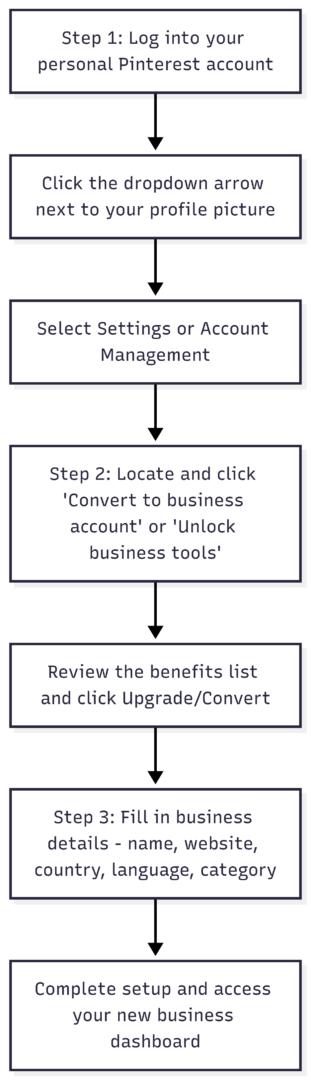
Step 1: Log in and access account settings
Open Pinterest and log into your personal account. Click the dropdown arrow (down arrow) in the top-right corner next to your profile picture. Select Settings.
Step 2: Convert the account
In the left menu, go to Account Management. Find the section labeled “Convert to business account” or “Unlock business tools.” Click Convert account (or Upgrade). Pinterest will show you everything you gain — review it, then confirm.
Step 3: Fill in your business profile details
Answer simple questions about your business: name, website URL, country/region, language, and category (e.g., Food & Drink, Home & Garden). Choose answers that best describe your goals. Click through to finish. Your account is now a business account.
Troubleshooting Tips
- If the option is missing, check if your account is private (switch to public first).
- If you have multiple linked accounts or existing business accounts on the same email, you may see “Add account” instead — unlink any personal-business connections first via settings.
- The process works on mobile too: tap your profile picture > three dots > Settings > Account Management.
Your pins, boards, and followers stay exactly the same.
Setting Up Rich Pins and Claiming Your WordPress Site
A business account alone does not activate rich pins — you must claim your website and add proper schema markup.
- In your business account, go to Settings > Claim and follow the prompts to verify ownership (HTML tag, meta tag, or file upload).
- For WordPress recipe or product sites, install a plugin that adds structured data automatically.
Recommended: Tasty Recipes (WP Tasty)
This plugin creates beautiful, SEO-optimized recipe cards with built-in schema that powers rich pins. Features include printable buttons, nutrition info, ingredient scaling, and Pinterest-ready formatting.
Example Tasty Recipes card with print and pin buttons — perfect for rich pins.
Current Pricing (annual, billed yearly):
- Basic: $49/year (1 site) — unlimited recipes
- Plus: $99/year (3 sites)
- Higher tiers available for agencies.
Tasty Pins (WP Tasty) – The Perfect Companion
This lightweight Pinterest plugin adds hover “Save” buttons to images, lets you customize pin titles/descriptions/hidden images, and controls exactly what gets pinned from your site.
Current Pricing (annual):
- Basic: $49/year (1 site)
- Plus: $99/year (3 sites)
- Pro: $199/year (5 sites)
- All Access: $349/year (25 sites, includes Tasty Recipes)
Both plugins offer a 14-day money-back guarantee. They work together seamlessly: Tasty Recipes handles rich pin data, Tasty Pins ensures every image is optimized for Pinterest SEO.
Pro Tips for Building a High-Performing Pinterest Business Account
- Write a keyword-rich bio: Example: “Easy recipes, baking tips, and meal ideas for busy home cooks. New posts weekly from [Your Blog Name].” Include searchable terms.
- Claim and link your site immediately for traffic tracking.
- Optimize for Pinterest SEO: Use target keywords in board titles, pin descriptions (up to 500 characters), and alt text. Research trending searches in your niche.
- Create scroll-stopping images: Vertical 2:3 ratio (1000×1500 px recommended), bold text overlays, bright colors. Tools like Canva work well.
- Pin consistently: Aim for 5–20 fresh pins daily. Repin your own content and others in your niche.
- Connect other social accounts (Instagram, YouTube) for cross-promotion.
- Monitor analytics weekly: Adjust strategy based on what actually drives clicks and saves.
Many bloggers see traffic double within months after switching and optimizing.
Final Thoughts: Is a Pinterest Business Account Worth It?
Yes — especially if you run a blog or sell digital/physical products. The upgrade costs nothing, takes under five minutes, and gives you professional-grade tools that personal accounts lack. Combine it with website claiming and the right WordPress plugins (Tasty Recipes and Tasty Pins) and your Pinterest strategy becomes a predictable traffic engine instead of guesswork.
Ready to grow? Log in now and complete the three steps. Once converted, claim your site, install your plugins, and start using analytics to refine your content. Your next big traffic surge is just one conversion away.
Please share this How To Switch to a Pinterest Business Account: 3 Easy Steps with your friends and do a comment below about your feedback.
We will meet you on next article.
Until you can read, How Category Pinning Works