Category pinning is a merchandising and organizational technique that manually fixes specific items, boards, categories, or products at the top of a list, product grid, feed, or screen. It overrides automatic sorting algorithms, ensuring chosen content stays prominent regardless of new additions, user behavior, or chronological updates. This delivers precise control over visibility, prioritizes high-value promotions, and improves user experience by surfacing the most relevant items first.
Platforms implement category pinning differently, but the core principle remains consistent: administrators or users select items and lock their positions. In e-commerce, this means high-margin or campaign products appear before algorithm-driven recommendations. On social platforms, it highlights key updates. In productivity tools, it keeps critical categories accessible. For content sites using WordPress and Pinterest, it enables hidden image pins that drive traffic directly to category archive pages packed with related posts.
Core Mechanics of Category Pinning
Category pinning operates through a simple backend interface. Users select items via checkboxes, search, or drag-and-drop, then apply a “pin” action. The system assigns a fixed rank (first pinned item occupies position 1, second position 2, and so on). Pinned content appears before any organic or algorithmic results. Most platforms support reordering by drag-and-drop and optional scheduling with start/end dates for time-sensitive promotions.
Visibility rules vary by platform. Pinned items typically ignore relevance scores, recency, or popularity metrics until the pin expires or is manually removed. This creates a hybrid sorting model: pinned positions first, followed by dynamic content.
Category Pinning in E-Commerce Merchandising
In e-commerce platforms like Voyado Elevate, category pinning gives merchants full control over product listings on category, brand, collection, and campaign pages. Merchants select products and pin them to exact positions within the primary product list or recommendation sections that use landing-page structures.
Key specifications include:
- Position locking: Pinned products occupy fixed slots at the top.
- Drag-and-drop reordering: Instantly rearrange sequence without code.
- Multi-page support: Applies to category pages, brand pages, campaign landing pages, and certain recommendation carousels.
- No impact on performance: Pins integrate directly into the existing product discovery engine.
A pinned product displays a small pin icon in the admin interface for quick identification. Merchants can pin via product search by name or ID, or directly from preview thumbnails. This feature supports editorial merchandising alongside boost and bury strategies, allowing layered control over visibility.
Benefits for e-commerce:
- Highlight seasonal collections, bestsellers, or clearance items without relying on algorithms.
- Run time-limited promotions that automatically unpin.
- Improve conversion rates by placing high-margin items in prime real estate.
- Maintain consistency across devices and sessions.
Voyado Elevate implements pinning on any page using landing-page requests. It works seamlessly with intelligent search and personalization, ensuring pinned products remain fixed while the rest of the list adapts to user behavior.
Category Pinning on Social Media Platforms
Social platforms use simpler versions of pinning. On Facebook, users pin a post to the top of their profile or page timeline. The pinned post stays first for all visitors until manually unpinned or replaced. This requires no additional setup beyond selecting the post and choosing the pin option.
The mechanism prioritizes the pinned post over newer content, making it ideal for evergreen announcements, product launches, or calls-to-action. Similar logic appears in other networks where users pin boards or topics for quick access.
Organizational and Productivity Tools
In budgeting apps, project management software like Wrike, or note-taking tools, category pinning fixes frequently used folders or budget categories at the top of the home screen or sidebar. The process usually involves a right-click menu or star/pin icon. Drag-and-drop lets users customize the top section.
This creates a personalized hierarchy: critical categories remain visible even as new projects or transactions accumulate. It reduces clicks and improves daily workflow efficiency.
Pinterest Category Pinning with Tasty Pins for WordPress
For WordPress bloggers and content creators, Pinterest category pinning via the Tasty Pins plugin stands out as one of the most powerful implementations. It lets you add hidden images (Pinterest-specific Pins) to category archive pages. These hidden Pins do not appear on the frontend but become available when users click the Pinterest save button or browse your profile.
Why Category Pinning Matters for Bloggers
Individual post Pins drive traffic to single articles. Category Pins widen the net: one Pin leads to an entire collection of related content. On a food blog, a single Dessert category Pin can send visitors to dozens of recipes instead of just one. This increases pageviews, session duration, and overall site engagement—signals that boost both Google SEO and Pinterest algorithmic reach.
Pinterest treats category Pins as rich, topical content hubs. They perform especially well for evergreen niches like recipes, home decor, fashion, and tutorials because users discover broad inspiration rather than isolated items.
Key Features of Tasty Pins for Category Pinning
Tasty Pins is a lightweight WordPress plugin designed specifically for Pinterest optimization, SEO, and accessibility. It separates Pinterest descriptions from standard image alt text, adds hover buttons, follow boxes, and banners, and provides character counters to keep descriptions within Pinterest’s optimal limits.
Core specifications:
- Hidden image support: Add Pinterest-only images that stay invisible on the page.
- Category-level pinning: Apply hidden Pins directly to taxonomy pages (categories, tags, custom taxonomies).
- Force pinning: Require users to save the hidden image when they click any Pinterest button.
- Disable pinning on specific images: Prevent unwanted saves on certain visuals.
- Page builder compatibility: Works with Elementor, Divi, Thrive, and classic editor.
- Performance: Zero impact on page load speed.
- Support: Unlimited customer support included.
Pricing: Tasty Pins is a premium plugin priced at $49 for full access (one-time purchase with updates and support). A 14-day money-back guarantee lets users test category pinning risk-free.
Step-by-Step Guide: Setting Up Category Pinning in Tasty Pins
- Log in to your WordPress dashboard.
- Navigate to Posts → Categories.
- Click the category you want to optimize (for example, “Dessert” or “Appetizers”).
- Scroll down to the Tasty Pins meta box (it appears automatically after plugin activation).
- Click to add one or more hidden images.
- Upload or select an image optimized for Pinterest (tall 2:3 aspect ratio recommended, 1000×1500 pixels ideal).
- Enter a compelling Pinterest description with relevant keywords and hashtags. Use the built-in character counter.
- Optionally force the hidden image or disable pinning on visible images.
- Save the category changes.
The hidden image now becomes available for pinning. When someone visits your category page and saves any image, Tasty Pins can direct them to the hidden category-optimized Pin instead. The Pin itself links back to the full category archive.
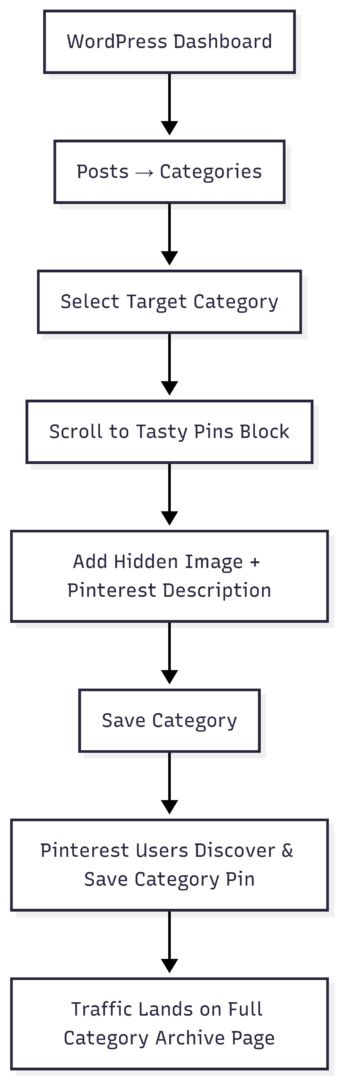
This workflow typically takes under two minutes per category.
Comparison of Category Pinning Across Platforms
| Platform | Pinning Context | Key Mechanism | Main Benefits | Pricing / Availability |
|---|---|---|---|---|
| Tasty Pins (WordPress) | Category archive pages for Pinterest | Hidden images in taxonomy meta box | Drives bulk traffic to content collections, SEO + Pinterest synergy | $49 premium (full features) |
| Voyado Elevate | E-commerce category, brand, campaign pages | Drag-and-drop product pinning on landing pages | Merchandising control, campaign highlighting, conversion lift | Enterprise SaaS (contact sales) |
| Profile or page timeline | Single post pin to top | Highlight announcements, offers | Free | |
| Wrike / Productivity | Project folders, budget categories | Pin to top of list or sidebar | Quick daily access, workflow efficiency | Subscription-based |
| General e-commerce (various) | Product grids and collections | Position locking + scheduling | Dynamic promotions without algorithm dependency | Varies by platform |
Benefits and Best Practices
Category pinning consistently improves key metrics:
- Visibility: Pinned items receive 2–5× more impressions than un-pinned equivalents in most studies.
- Conversion: E-commerce merchants report higher add-to-cart rates on pinned products.
- Engagement: Pinterest category Pins increase average session time by directing users to content hubs.
- Control: Schedule pins for promotions or remove them instantly when inventory changes.
Best practices:
- Pin only 3–5 items per page to avoid overwhelming users.
- Rotate seasonal collections every 30–60 days.
- Use high-quality, vertical images for Pinterest Pins.
- Monitor analytics: track traffic from Pinterest to category pages and adjust descriptions accordingly.
- Combine with rich data (schema markup on category pages) for enhanced search visibility.
- Test descriptions with keywords users actually search on Pinterest and Google.
For WordPress sites, prioritize high-traffic categories first. Food bloggers, fashion sites, and DIY niches see the largest gains because users browse collections rather than single posts.
Common Questions About Category Pinning
Does pinning affect SEO?
Yes, indirectly and positively. By increasing dwell time and internal navigation on category pages, it signals quality to Google. Pinterest traffic also passes referral value.
Can pinned items be scheduled?
Most advanced platforms (Voyado Elevate, Tasty Pins with manual updates) support time-based pinning through manual or automated rules.
Is there a limit to how many items you can pin?
Platforms rarely impose hard limits, but best practice recommends keeping pinned sections concise (under 10 items) for usability.
Do hidden Pins count against Pinterest limits?
No. Hidden images in Tasty Pins are optimized specifically for Pinterest and do not bloat your site’s frontend.
Category pinning transforms passive lists and feeds into strategically curated experiences. Whether you run an online store, manage a blog, or organize team projects, mastering this feature gives you immediate control over what your audience sees first. For WordPress users, Tasty Pins makes Pinterest category pinning simple, fast, and highly effective at scale.
Implement the techniques above and measure the difference in traffic, engagement, and conversions. The setup is straightforward, the impact is immediate, and the competitive advantage compounds over time.
Please share this How Category Pinning Works with your friends and do a comment below about your feedback.
We will meet you on next article.
Until you can read, How To Promote Your Blog on Pinterest [7 Best Ways!]